Adding DB to Always On Availability Group “Password required”

It is just one of those days which you are getting ready confidently to add another database into AlwaysOn Availability Group just like you did countless times since 2014, maybe you work on a version upgrade project and finished a migration from earlier version to newer version just like me. You open SSMS, launched “Add Database” wizard but there is a strange error which you have never seen before. Wizard says it is not possible to add database to AlwaysOn Availability Group because “Password required”. But what password? You then start to wonder and confuse, because this database is not encrypted, at least not on your watch!

What is it Doc?

I’d like to explain what is going on behind the curtain for curious, passionate database administrator before providing easy and quick solution. If you are willing to just fix it and move on, you can jump to last part.

Before moving forward, I’d like to explain my scenario. I migrated a database, which was already in availability group, from 2014 to 2016 and tried to add database to availability group, then I saw this error. At that moment, I didn’t know that the database is encrypted.

Now, let’s understand why we are required to enter a password nto be able to make database highly available. When you click on “Password required” hyperlink, it shows a dialog which clearly states that this database has some keys which needs to be opened via password.
“This database is encrypted by database master key, you need to provide valid password when adding it to the availability group.”

That’s right. Database is encrypted. But how and when?

After checking carefully, I noticed that application database has a symmetric key since big bang, okay cool but this database was added to Availability Group in SQL Server 2014 without any issue, why is it an issue now?

Because Microsoft introduced a new check step while adding a database to an availability group in SSMS 2016 :’Checking password of the database master key’. It turns out this is a known issue with SSMS when you migrate a database into a new server and choose “Full database and log backup” method for initial synchronization. According to this blog, you may skip it by choosing another initialization method.

That’s why it was just fine on SQL Server 2014 but suddenly not possible in SQL Server 2016. It was not SQL version but Management Studio version that was causing this issue.

For those who likes to reproduce issues

Here is the code block for you to reproduce this issue on test box.

--First let's create an Empty Test DB to reproduce the scenario
CREATE DATABASE EncryptedDB;
GO
--Now create master key under database
USE [EncryptedDB];
GO
CREATE MASTER KEY ENCRYPTION BY PASSWORD = 'Db@RuL3z!'
GO

--Take a full backup to meet requirements
BACKUP DATABASE [EncryptedDB] TO  DISK = N'\\BackupPath\EncryptedDB.bak' ;
GO

--Then open "Add Database" wizard under Always On High availability

Just tell me how to fix this

To solve this problem and go back to our peaceful, calm daily dba life(heavy sarcasm), you have simply two options.

  • Provide the password for database key and click “Refresh”
  • Drop the key

If you choose the first approach, it may be harder to find where to put password than finding the password itself since it is not very obvious in the wizard. There is a vague, hidden text box which you can enter password under “Password” column as shown in below screenshot.

Don’t forget to hit Refresh after filling it!

If you prefer the latter, then just drop it. Here is MS documentation to Drop master key.

USE [EncryptedDB];
GO
DROP MASTER KEY; 
GO

Until next weirdness, au revoir!

Implement Transparent Data Encryption(TDE) in SQL Server 2019 Standard Edition

The most striking change in feature set of Standard Edition SQL Server 2019 is by far Transparent Data Encryption(TDE) support. That means you don’t have to pay Enterprise License just to secure your data at rest. What does “at rest” that mean? I will explain in a bit.

Standard Edition License is much cheaper(around 4 times) compared to Enterprise Edition License. Naturally, it lacks numerous cool features like Always On Availability Groups (Standard only has Basic Availability Group), Online Page Restore, Online Index Create and Rebuild to name a few. With every new version of SQL Server, Microsoft adds a couple of features into Standard Edition set, this year it is TDE. GDPR and information security is a very hot topic nowadays, thus this looks like a nice and neat strategy from Microsoft. Enough talk, lets get to business.

What is TDE?

TDE is an encryption mechanism that secures data at rest which means it encrypts data on physical disk. Thus, data is really transparent to the client so they don’t have to install a new driver or change their code base. It is a physical security which means your data is still vulnerable in buffer cache, network traffic and so on. Nevertheless, In case of a burglary in your data center, thieves will be sad when they realize your data is encrypted on disk. Encryption of the database file is performed at the page level. Thus, pages are encrypted first then written to the disk, they are decrypted when read into memory.

TDE secures data in:

  • Database Data Files
  • Database Transactional Log Files
  • Database Snapshots
  • Database Backups
  • TempDB

TDE doesn’t deal with:

  • SQL Dump Files
  • FILESTREAM data
  • Buffer Pool Extension(BPE)

TempDB may be a surprise for you. Yes, TempDB will be encrypted if any database is encrypted with TDE. This may cause performance degradation for unencrypted databases on the same server according to Microsoft.

How it works?

It is all about hierarchy.

  1. Windows Data Protection API(DPAPI) protects Service Master Key(SMK).
  2. SMK protects Database Master Key(DMK)
  3. DMK protects all objects in that database such as Certificates, Keys etc
  4. Certificate in master database protects Database Encryption Key(DEK)
  5. DEK encrypts all pages in the candidate database for TDE.

How to setup TDE?

I’d like to list steps first and explain them in detail one by one.

  1. Create Master Database Key
  2. Create Certificate
  3. Backup Certificate
  4. Create Database Encryption Key
  5. Enable Encryption

That’s it. Pretty straightforward and easy steps to implement TDE.

Lets have a closer look

Understanding how each step works and why it is needed is crucial to perform administrative tasks on databases, especially with encryption technologies. SQL Server Encryption terms are not very clear and A BIT confusing for a lot of people so I will explain each of them in detail.

1. Create Database Master Key(DMK)

First of all, this has nothing to do with master database. DMK is a symmetric key which protects other keys, like King of Kings. You have to have a DMK to be able to encrypt all the encryptable objects within the database such as

  • Symmetric Keys
  • Asymmetric Keys
  • Certificates

DMK can be created for any database, but for TDE, you need a DMK in master database. DMK is protected both with a password and SMK. A copy of DMK is encrypted by Service Master Key(SMK) so that whenever database is used, the service account can decrypt the SMK and use that key to decrypt the DMK without us entering the password.

PS: For a super secure environment, you can break this link between SMK and DMK so that the only way to open and use encrypted database is a DBA enters the password. That is a very rare case and so I’m not going to discuss it here.

Service Master Key:

SMK is the root of SQL Server Encryption Hierarchy and it is created during SQL Server Setup and protected by Windows Data Protection API(DPAPI).

Command:

USE master; 

CREATE MASTER KEY ENCRYPTION BY PASSWORD = ‘VeryStrongPassword’;

GO

2. Create Certificate

Now that we have a DMK in master database, we are able to create keys and certificates then encrypt them using DMK.

A certificate is a digitally signed security object that contains a public (and optionally a private) key for SQL Server. We are going to use a Certificate to protect Database Encryption Key(DEK) in next step.

Why do we need a certificate? Why don’t we use DMK to secure DMK?

Because when we want to migrate our database to a new server, we have to migrate our DMK too since it is required for decryption. If new server already uses TDE, then there will be a problem because new server has its own DMK already. There are additional reasons but this is the main one.

Command:

USE master; 

CREATE CERTIFICATE TDECert WITH SUBJECT= ‘TDE Certification

GO

3. Backup Certificate

This is super important because if you lose your certificate, you lose your data, period.

That’s why, best practice is taking backup immediately after you create it.

BACKUP CERTIFICATE TDECert
TO FILE = ‘D:\BK\MyTDECert.cer’
WITH PRIVATE KEY
(
FILE = ‘D:\BK\CertPrivateKey.key’,
ENCRYPTION BY PASSWORD = ‘VeryStrongPassword’
);
GO

We are safe now. If we need to restore or migrate our database into a new server, we need below things to access data:

  • Backup of the database
  • Certificate file
  • Private Key file
  • Encryption Password

4. Create Database Encryption Key

It is time to create our main key, Database Encryption Key. The certificate in master database will protect DEK and DEK will encrypt data on every page.

You can only have one DEK in each database. It is stored in the database so that means it will move with the database. That’s why it is not included to the list of required items above.

T-SQL Command is pretty easy to grasp. I will recommend using AES_256 algorithm.

Command:

CREATE DATABASE ENCRYPTION KEY
WITH ALGORITHM = AES_256
ENCRYPTION BY SERVER CERTIFICATE TDECert;

5. Enable Encryption

Last step is turning encryption on for the database. This will start a thread to encrypt entire database using Database Encryption Key. According to my experiences, percentage column in sql server dmv is not working very precise, especially with large databases, but it gives you an idea.

TDE Scan

I am glad to announce this new feature we have in SQL 2019: TDE Scan. We can suspend and resume TDE process now using TDE Scan as described here. During encryption, you can track the process using dynamic management view sys.dm_database_encryption_keys.

Commands:

SELECT db_name(database_id) as db_name, percent_complete, * FROM sys.dm_database_encryption_keys
GO

ALTER DATABASE TDETest SET ENCRYPTION ON;

ALTER DATABASE TDETest SET ENCRYPTION SUSPEND;

ALTER DATABASE TDETest SET ENCRYPTION RESUME;

Database is encrypted now on the physical layer.

Summary

Let’s go over all one more time.

We have data stored in pages on physical layer. This pages are encrypted using Database Encryption Key.  DEK is a symmetric key which means you can encrypt and decrypt data using same key. SQL Server uses it while accessing data.

DEK is secured by the certificate. Certificate is encrypted using Database Master Key. Both of them are in master database. DMK is encrypted using Service Master Key. Finally SMK is secured using Windows DPAPI.

Don’t forget that database backups will be encrypted also. You will need DMK password and certificate to be able to restore database.

Upgrading SQL Server 2019 from CTP to RTM version: Is it even possible?

We have been waiting so long for this moment. SQL Server 2019 RTM is finally out! Maybe Microsoft should announced it as SQL Server 2020 when taking into consideration that only one month left to reach new year. Anyway, better late than never.

As I stated, It took so long that we did not only refresh Microsoft downloads website and waited with open arms, but also we wanted to do something in the meantime.  That’s why, we followed early versions and installed SQL Server 2019 CTP 3.0 Evaluation Edition to get things going while waiting for RTM. I told the business partners that this is an Evaluation Edition which will ends in 6 months, took the sign-off and started waiting for RTM release.

Now that the time has come, I am asking this question:

Is it possible to upgrade SQL Server 2019 CTP 3.0 version to RTM version?

Looks like it is not. 

I read Release Notes for SQL Server 2019 , there is no information about upgrade from CTP or RC version. Then, I kept searching on the internet and came across this documentation page which clearly states that they only support upgrades from Developer Edition and Release Candidates with a special condition on being Early Adopter Program member: Supported Version and Edition Upgrades for SQL Server 2019

I decided to give it a shot and launched Installation Wizard. First I tried “Upgrade from a previous version” option.

UpgradeWizard1UpgradeWizard2

Unfortunately, that didn’t work due to the fact that installer gets information about already installed CTP version and forces you to create a new named instance which is not our desire. So it is a dead end.

Then It occurred to me that this is also an Edition Upgrade from Enterprise Evaluation to Enterprise. At this point, I have nothing to loose. I took backup of databases, server objects and accepted the fact that I have to uninstall CTP and start with a clean install of RTM.Thus I decided to try Edition Upgrade also. 

UpgradeWizard3UpgradeWizard4UpgradeWizard5UpgradeWizard6

Obviously, this didn’t work too, Nevertheless, They may say I have failed but No one can say I didn’t try.

I removed everything that has ‘2019’ in it from Programs and Features, restarted server and finally installed brand new SQL Server 2019 RTM Enterprise Edition.

During installation, I’ve noticed two new tabs in “Database Engine Configuration” section. They are MaxDOP and Memory as you can see below.

NewTabsNewTabMemory

Good to have Recommended Memory Adjustments in the wizard, that means I don’t need the piece of code in my installation script where I set these values manually.

Memory settings are crucial for database engine. Thus, Microsoft would like to make sure that you know what you are doing. If you don’t tick the box at the bottom, GUI gives an error:

NewTabMemory2

The rest is just usual installation wizard steps.

To sum up, it is not possible to upgrade from CTP or RC versions to RTM directly. You have to uninstall everything first and then install a fresh one.

I understand why this is not supported from Microsoft but I would expect some unofficial documentation or blogs about this upgrade but looks like no one even bothered trying or documenting.

Cannot Connect to Integration Services: “Failed to retrieve data for this request. (Microsoft.SqlServer.Management.Sdk.Sfc)”

Today I came across this problem while trying to connect a brand new 2016 SQL Server Integration Service. We are currently working on a Proof of Concept and I installed Database Engine, SSIS, SSAS and SSRS, all in 2016 version. I also downloaded and installed latest SSMS which is 18.2 while I am writing this post.

At first glance I didn’t understand what the problem is, here is the error message when I try to connect:

ConnectionError

First, I double checked that SSIS is installed and running properly.

services

Then I realized that error message states something is wrong with Microsoft.SqlServer.Management.Sdk.Sfc. I tried to browse SSIS with SSMS Browser but it couldn’t find the local Integration Service although it was showing other services as Database Engine, SSAS and SSRS.

Browse

Hold tight. It turns out that newer versions of SQL Server Management Studio is not compatible with SSIS 2016, sigh.

To get rid of this annoying problem, you have to uninstall SSMS (18.2 in my case) and then downloaded and installed SSMS 16.5.3. You can download it from here: SSMS 16.5.3

After installing SSMS 16, I was able to browse Local integration service and connect to SSIS without an issue.

Bottom line is always be careful when working with latest product versions and compatibility issues.


Always On Availability Group with Mixed SQL Server versions

Upgrades and Migrations are natural part of a database administrator’s life. If you think about the product cycle of SQL Server, Microsoft reduced it from four years(2000-2005-2008-2012) to two years( 2012-2014-2016-2017 and 2019) . We even have 2016 and 2017 as back to back versions.  That means almost bi-yearly upgrade and migration projects for database administrators.

We all have been there and know how terrible this process can be. Trying to identify all applications connecting to a consolidated server, talking to application specialists and system engineers to change configuration files to point them to new server, legacy applications which doesn’t allow to use new features or no one wants to touch it due to  hidden configs that no one knows where it is.  All those hassles that reminds me bad memories.

7 years ago Starting with SQL Server 2012, AlwaysOn Availability Groups(AG) came along as a High Availability and Disaster Recovery solution. It was an enhanced version of Database Mirroring technology but it allowed people to create groups of databases that can automatically failover together. Moreover, AG Listener gets all client connection requests and directs them to the appropriate availability replica. No need to update DNS records in case of a failover anymore! It has tons of other features as readable secondary, read-only routing lists and so on. Most companies loved this technology and used it as a primary HA solution for SQL Server landscape.

What is going to happen when we have to migrate from SQL Server 2012 to a higher version? Of course, you can create new environment with new SQL Server version, lets say 2016, and migrate applications one by one in a timely fashion. How about when you don’t have that luxury and you have to do it all in one go? Then you start wondering like

“Can I use AlwaysOn technology for this? Can I add new SQL 2016 servers as secondary and failover entire server in a minute?”

yeswecan

Achtung!

Before jump in the pool of joy, There are a few thing to keep in mind with this approach though:

  • Microsoft says this is only supported in a rolling upgrade scenario and it shouldn’t be kept for a long time. Upgrading Always On Availability Groups
  • Secondary servers with higher versions can not be read. They will have “Synchronized / In Recovery” status which I will show below.
  • Once you failover to new servers with higher versions, there is no way back. By design, it is not permitted to replicate data from higher version to lower version. I guess the only reason why this is possible to replicate in reverse is to support this kind of upgrade scenarios.

So Capua, shall I begin?

Capua

Setting up Simulation Environment

I am going to perform this test with 4 Virtual Machines to mimic most common 2 node Always On Availability Group setup.

I will not mention all steps in detail such as how to create an availability group via Wizard or T-SQL scripts because that deserves another blog post. Instead, I am going to list the steps:

  1. Install SQL Server 2014 on Server A and Server B, then apply latest SP and CU
  2. Install SQL Server 2016 on Server C and Server D, then apply latest SP and CU
  3. Create WSFC and Add Server A and Server B as Nodes
  4. Enable Always On feature on both Server A and B
  5. Restart Database Engine Service on both Server A and B
  6. Create Always On Availability Group with a Listener
  7. Add a database into AG

At this point, we have the same setup with current production environment. Up and running 2 node AG in sync mode. Now it is time to add new Servers into equation and start real testing.

To be able to add them as secondary replicas to existing AG, we need to enable AG feature and that is only possible if those servers are added as Nodes to WSFC. Thus, first add them to cluster.

WSFC

After enabling AlwaysOn feature and restarting SQL services, I added them as Secondary Replicas to AG without any problem.

SSMS

Let’s Add Tutorial DB to AG. I usually don’t use wizard for this kind of operations due to tons of valid reasons and I recommend you to do so. If you use the wizard, at least take the script on the last screen and close GUI. Even that is better.

AG

At this point, I noticed that secondary replicas with 2016 versions are synchronized but not readable as stated earlier above. Now, let’s try to fail over to 2016 to finish this simulation.

:Connect NL-SQL16-T1

ALTER AVAILABILITY GROUP [NL-SQLDAGT-AG1] FAILOVER;

GO

As soon as failover completes, 2014 replicas becomes “Not synchronizing” as seen below. As Wolfsheim once said, es gibt kein weg zurück which means there is no way back.

AG2

I truly believe that this is a great feature to cover corner cases. On the other hand, I would rather migrate application one by one in a more controlled way rather than moving them all in one go. After all the years I worked as DBA, one thing I learned from the hard way is “Never put all your eggs in one basket”.

Disable Download Button in Power BI Report Server

We are using on premise Power BI solution to give insights to analysts about company data and create fancy dashboards for management. We are publishing reports to Power BI Reporting Service. By default, end users can download reports using “Download” Button located at the right top of the portal.

Download button
Download Button 

Due to security concerns, we decided to disable/hide this “Download” button in Power BI Reporting Server. After a quick research, it turns out to be able to do that, you have to set the system property “ShowDownloadMenu ” to false. Cool, how can we do that?

According to below discussion, you can do this via Management Studio in SSRS 2017.

Disable Download buttons in Power BI Report Server

So, it looks pretty straight-forward. I listed steps below:

  1. Open SSMS, choose “Reporting Services” for Server Type and connect to Reporting Service as shown in Figure 2. You may also use Web Portal/Service URL to connect to it.
  2. Right-click on Servername in Object Explorer and click Properties.
  3. Click “Advanced” Tab and Set “ShowDownloadMenu” to False.
Connection

Easy peasy, right? Not that easy if you fall to the same trap like me. That is the reason why I write this blog post.

Based on my experience, this sort of binary fields in SSMS GUI which manages server/database level settings always set with a Dropdown list. For instance, Recovery model, Auto-Shrink, Auto-Close, Compatibility Level and so on. When you select this setting fields, you see a little arrow at the end of the line to change this setting as in below screenshot, or you basically click two times on the setting and it will change its value.

Arrow

I was trying to get the dropdown list to change it from true to False but it looked like a read-only field. Double click alsodidn’t work. I was searching on forums, trying to give more rights to my account. I even tried to connect with service account to see if it is able to change it. No luck.

FIX:

It took me half an hour to realize this field is not a Dropdown list, instead a simple text box which can be edited directly.  Seriously? How much effort needed to make it a list or changeable by double-clicking like it has been for ages? Poor design from SSMS team in my humble opinion, due to the fact that other settings are indeed dropdown list and has tiny arrow ON THE SAME GUI.

Arrow2
Arrow3

Always On Secondary Database in Reverting/In Recovery

The other day I had an interesting incident with my Always On servers. After a successful failover to other site, new secondary(old primary) database stuck in Reverting / In Recovery status for a looooong time. I wondered why, i did some research and here is what I found.

PROBLEM:

We have 2 Stand Alone Always On nodes on a Multi-Subnet Failover Cluster.

Availability Mode: Sync Commit

Failover Mode: Automatic Failover

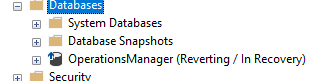
We performed a failover from Node 1 to Node 2. Failover is finished successfully and database is online now on Node 2. However, Node 1 did not switch to “Sychronized” state. Instead, it got stuck in Reverting/In Recovery state like in below figure.

Reverting

Since it is in “Reverting / In Recovery” state, applications and end-users were not able to access it on secondary.

CAUSE:

According to MS documentation for dm_hadr_database_replica_states:

3 = Reverting. Indicates the phase in the undo process when a secondary database is actively getting pages from the primary database. Caution: When a database on a secondary replica is in the REVERTING state, forcing failover to the secondary replica leaves the database in a state in which it cannot be started as a primary database. Either the database will need to reconnect as a secondary database, or you will need to apply new log records from a log backup.

It basically tells that we initiated a failover from Node 1 to Node 2 while there was running transactions on Node 1 for long time and they were interrupted by failover. Naturally Node 1 have to complete rolling back those transactions before accept new pages from primary site and become available again. During this process, secondary will be unavailable to reports, read-only routing requests, backups etc.

FIX:

Always check open and running transactions before initiating a failover! Especially the ones that produces tons of logs such as index maintenance, big chunks of DML operations and so on.If you see such activity on availability database(s), either wait them to finish or stop them.

Well, there is no fix. If you already did failover and saw database in reverting state,  there is nothing you can do other than waiting for the completion of rollback operation. Undo phase should be finished and this may take long time. In my case, it took 30 minutes to rollback all transactions and complete reverting stage . Only after than secondary replica became available and switched to “Synchronized” state. There will be 3 phases of secondary database replica state during undo process:

  1. Synchronization State: “NOT SYNCHRONIZING” ; Database State: ONLINE
  2. Synchronization State: “NOT SYNCHRONIZING” ; Database State: RECOVERING
  3. Synchronization State: “REVERTING” ; Database State: RECOVERING

This states can be viewed by executing below query:

select DB_NAME(database_id) as DatabaseName
,synchronization_state_desc
,database_state_desc
from sys.dm_hadr_database_replica_states
where is_local=1 and is_primary_replica=0

RevertingState

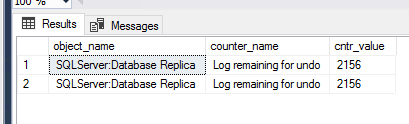
But hey, cheer up! You can watch 3rd phase of undo process by looking at the counter :

SQLServer:Database Replica Log remaining for undo

You may monitor it via Performance Monitor tool or from system dmv. We are using Windows Core on database hosts thus I have to monitor this counter from dm_os_performance_counters as:

SELECT [object_name],
[counter_name],
[cntr_value] FROM sys.dm_os_performance_counters
WHERE [object_name] LIKE ‘%Database Replica%’
AND [counter_name] = ‘Log remaining for undo’

LogForUndo

This Counter Value shows the amount of log in kilobytes remaining to complete the undo phase according to MS documentation.

When this is done, database is switching to Synchronized immediately.

To sum up, if you have long running transactions on primary site before failover occurs, it will be in reverting stage for a while. That’s why, I think it is a good practice to check running processes before initiating failover even though AlwaysOn Dashboard shows no data loss. If you ever encounter this, you may monitor the process by looking at replica states of secondary replica and watching Log remaning for undo counter.

Always On Availability Groups with Multi-Subnet Failover Cluster

So you decided to create Always On Availability Groups with Multi-Subnet Failover Cluster which gives you the opportunity to failover across different data centers that you have in different regions or continents. Lately, we created this scenario for our monitoring tool with 2 different Subnets. Along the way, we have faced some issues and fixed them. I prepared this post to give you a quick summary about our experiences.

First of all, Multi Subnet Failover Cluster needs to be created and configured by Windows or Domain Admins.

Command:

Install-WindowsFeature -Name Failover-Clustering -IncludeManagementTools

New-Cluster -Name MS-SQL-FC -Node SCOMDB1, SCOMDB2 -StaticAddress x.x.x.x, y.y.y.y

In this example:

Cluster Name Object(CNO) : MS-SQL-FC

Nodes: SCOMDB1(Primary),SCOMDB2(Secondary)

After Multi-Subnet Failover Cluster ready, Always On feature needs to be enabled on both SQL Services. After this feature enabled, a service restart is required. If you enable this feature before cluster is fully operational and ready  you will get an error when you try to create AG such as:

Msg 35220, Level 16, State 1, Line 92
Could not process the operation. Always On Availability Groups replica manager is waiting for the host computer to start a Windows Server Failover Clustering (WSFC) cluster and join it. Either the local computer is not a cluster node, or the local cluster node is not online. If the computer is a cluster node, wait for it to join the cluster. If the computer is not a cluster node, add the computer to a WSFC cluster. Then, retry the operation.
Disconnecting connection from HOSTNAME…

Now, we can continue to Always On Availability Group setup. The tricky part here is not using New Availability Group Wizard but using TSQL! There are 3 reasons:

1- You can not create an empty Availability Group with Wizard. Most of the time you need to setup Availability Group prior to application setup. In that case, people (even some DBAs with 15 years background) create dummy databases just to create AG, that breakes my heart in two. You can create empty AG with TSQL.

2- When you create an Availability Group with Wizard and add a database with backup & restore seeding method, the user who launced the Wizard will be the owner of :

  • Endpoint
  • Availability Group
  • Database

Guess what is going to happen when that individual leaves the company? Thus use T-SQL Scripts and specify an account with EXECUTE AS LOGIN command! It could be sa or a dedicated svc account for this purpose. In my example I will be using sa account.

3- It’s fun, fast and more secure.

Below script should be executed on both SCOMDB1 and SCOMDB2 to create Endpoint for AG communication and Extended Events to monitor AG:

USE [master]
GO
EXECUTE AS LOGIN=’sa’
CREATE ENDPOINT [Hadr_endpoint]
AS TCP (LISTENER_PORT = 5022)
FOR DATA_MIRRORING (ROLE = ALL, ENCRYPTION = REQUIRED ALGORITHM AES)
GO

IF (SELECT state FROM sys.endpoints WHERE name = N’Hadr_endpoint’) <> 0
BEGIN
ALTER ENDPOINT [Hadr_endpoint] STATE = STARTED
END

USE [master]
GO
EXECUTE AS LOGIN=’sa’
GRANT CONNECT ON ENDPOINT::[Hadr_endpoint] TO [sa]
GO

IF EXISTS(SELECT * FROM sys.server_event_sessions WHERE name=’AlwaysOn_health’)
BEGIN
ALTER EVENT SESSION [AlwaysOn_health] ON SERVER WITH (STARTUP_STATE=ON);
END
IF NOT EXISTS(SELECT * FROM sys.dm_xe_sessions WHERE name=’AlwaysOn_health’)
BEGIN
ALTER EVENT SESSION [AlwaysOn_health] ON SERVER STATE=START;
END
GO

Create Always On Availability Group on SCOMDB1:(Make sure to edit Failover Mode, Availability Mode and other options according to your business needs)

EXECUTE AS LOGIN=’sa’

CREATE AVAILABILITY GROUP [SCOMBAG]
WITH (AUTOMATED_BACKUP_PREFERENCE = PRIMARY,
BASIC,
DB_FAILOVER = ON,
DTC_SUPPORT = NONE)
FOR
REPLICA ON N’SCOMDB1′ WITH (ENDPOINT_URL = N’TCP://SCOMDB1.FQDN:5022′, FAILOVER_MODE = AUTOMATIC, AVAILABILITY_MODE = SYNCHRONOUS_COMMIT, SEEDING_MODE = AUTOMATIC, SECONDARY_ROLE(ALLOW_CONNECTIONS = NO)),
N’SCOMDB2′ WITH (ENDPOINT_URL = N’TCP://SCOMDB1.FQDN:5022′, FAILOVER_MODE = AUTOMATIC, AVAILABILITY_MODE = SYNCHRONOUS_COMMIT, SEEDING_MODE = AUTOMATIC, SECONDARY_ROLE(ALLOW_CONNECTIONS = NO));

Create Always On Listener on SCOMDB1

EXECUTE AS LOGIN=’sa’

ALTER AVAILABILITY GROUP [SCOMBAG]
ADD LISTENER N’SCOMBAG-L’ (
WITH IP
((N’10.x.x.z’, N’255.255.255.0′),
(N’10.y.y.z’, N’255.255.255.0′)
)
, PORT=1433);

Join Secondary Host to AG

EXECUTE AS LOGIN=’sa’
ALTER AVAILABILITY GROUP [SCOMBAG] JOIN;

EXECUTE AS LOGIN=’sa’
ALTER AVAILABILITY GROUP [SCOMBAG] GRANT CREATE ANY DATABASE;

Now, You can create your database(s) and add them to Availability Group. There are two prerequisites for adding a database to Availability Group:

  • Database should be in FULL recovery mode
  • At least one full backup should be performed

After a database meets these requirements, you can prepare database on secondary with backup & restore method by executing below script in SQLCMD mode

–Prepare database on secondary with backup & restore method

:Connect SCOMDB1
EXECUTE AS LOGIN = ‘sa’;
BACKUP DATABASE [DBNAME] TO DISK = N’DBNAME_AG.bak’
:Connect SCOMDB2
EXECUTE AS LOGIN = ‘sa’;
RESTORE DATABASE [DBNAME] FROM DISK = N’DBNAME_AG.bak’ WITH NORECOVERY
:Connect SCOMDB1
EXECUTE AS LOGIN = ‘sa’;
BACKUP LOG [DBNAME] TO DISK = N’DBNAME_AG_log.bak’
:Connect SCOMDB2
EXECUTE AS LOGIN = ‘sa’;
RESTORE LOG [DBNAME] FROM DISK = N’DBNAME_AG_log.bak’ WITH NORECOVERY

Now, Database is ready and you can add it to Availability Group
–CONNECT TO PRIMARY
:Connect SCOMDB1
EXECUTE AS LOGIN = ‘sa’;

ALTER AVAILABILITY GROUP [SCOMBAG] ADD DATABASE OperationsManager;

–CONNECT TO SECONDARY
:Connect SCOMDB2

EXECUTE AS LOGIN = ‘sa’;
ALTER DATABASE [OperationsManager] SET HADR AVAILABILITY GROUP = [SCOMBAG];

–Check the dashboard.

The thing about multiple DNS Records

When we create the cluster, CNO creates DNS records under its name on DNS server for each subnet on the failover cluster such as:

MS-SQL-FC  10.x.x.x

MS-SQL-FC  10.y.y.y

When we create Always On Listener from SQL Server,RegisterAllProvidersIP setting will be set to 1 automatically. As a result, Listener Cluster Resource creates DNS records for each subnet ip it has been assigned such as:

SCOMBAG-L 10.x.x.z

SCOMBAG-L 10.y.y.z

This is an intended behaviour by design. If you add “MultiSubnetFailover=true”  clause into connection string and your connector supports this feature(you can check here) database connector gets two DNS records from DNS server and then tries to connect both IP addresses in parallel (theoratically) and connects to right one. Thus, downtime will be minimized in case of a failover.

However, there may be such cases like older database clients doesn’t support MultiSubnetFailover option or your application doesn’t support this feature like our monitoring tool. Then, clients will get timeout errors for %50 percent of their requests inevitably since half of the connections would use wrong DNS record.

To solve this,  you have to set RegisterAllProvidersIP to 0, then only the online subnet’s IP will be registered with DNS. You also need to set HostRecordsTTL parameter to reduce downtime. By default it is 1200 seconds, which means that every 20 minutes Local DNS Cache will be updated and application server will learn online IP. Common best practice is setting it to 600 so Local DNS cache will be updated every 5 minutes. Thus, in case of a failover, downtime will be only 5 minutes. We set it to 60 seconds in our case. You can set this parameters for Cluster Name and Listener Network Name through Powershell as:

Get-ClusterResource “Cluster Name | Set-ClusterParameter -Name HostRecordTTL -Value 120 

Get-ClusterResource “Cluster Name” | Set-ClusterParameter -Name RegisterAllProvidersIP -Value 0

Get-ClusterResource “SCOMBAG-L” | Set-ClusterParameter -Name HostRecordTTL -Value 120 

Get-ClusterResource “SCOMBAG-L” | Set-ClusterParameter -Name RegisterAllProvidersIP -Value 0

The listener name resource has to be taken offline and back online for the above changes to take effect. If you do these parameter settings in setup phase, then you are a wise man. If you find out after you installed the environment and clients started to complain about timeout errors, then taking Listener name resource offline will also take the availability group offline since it is dependent on Listener name resource. To prevent this, you should remove the dependency with Powershell or by the Windows Failover Cluster Manager utility.

Windows Failover Cluster Manager:

  • Open Properties of Availability Group Role
  • Click Dependencies Tab and Delete Listener Name Resource

Powershell:

Remove-ClusterResourceDependency -Resource SCOMBAG -Provider SCOMBAG-L

Now you have to take listener name resource offline and back online.

Stop-ClusterResource SCOMBAG-L

Start-ClusterResource SCOMBAG-L

Force DNS Update

Get-ClusterResource SCOMBAG-L | Update-ClusterNetworkNameResource

Re-add dependency

Windows Failover Cluster Manager:

  • Open Properties of Availability Group Role
  • Click Dependencies Tab and Click Resource dropbox
  • Select Listener Name Resource and Apply

Powershell:

Add-ClusterResourceDependency -Resource  SCOMBAG  -Provider SCOMBAG-L

Reconfigure Listener Port configuration from SSMS:

ALTER AVAILABILITY GROUP [SCOMBAG] MODIFY LISTENER ‘SCOMBAG-L’ (PORT=1433);

Server principal ‘LoginName’ has granted one or more permission(s). Revoke the permission(s) before dropping the server principal

A good DBA likes to keep his/her SQL Server environment clean and neat, that’s why dropping old, unused or unnecessary logins and users is always fun. However,  dropping a user or login can cause many unexpected troubles if you don’t carefully observe the permissions and roles and objects that could be related to that account. Unfortunately, there is no easy way to track down or analyze all server or database level permissions, users and roles related to one specific login.

I have scripts which runs every hour and checks and stores all roles and permissions to inventory tables. Before I clean up my logins, i always have a look at these tables to prevent any possible problem.

Today I was doing my routine task but i couldn’t drop one domain account and SQL Server returned this generic error :

loginfail

I am surprised because I double check my tables, there shouldn’t be a object or role or permissions bound to this account. The problem was this account was the grantor of a permission, not the grantee. I looked at my tables and I found that this account granted “CONNECT” permission on Always On Endpoint to another account.

This can also be checked with the below query:

SELECT * FROM sys.server_permissions
WHERE grantor_principal_id = ( SELECT principal_id FROM sys.server_principals WHERE NAME = N’LoginName’)


Backup script fails due to lack of network share permission

Most of people uses Ola Hallengren’s Maintenance Solution to administer their databases.  It’s easy to setup, easy to maintain. It also has dozens of parameters that you can specify and adjust maintenance plan according to your business needs.If you never heard it, you must take a look now!

We have encountered a generic problem with backup script, it was complaining about network share that we take our database backups.

We use same script on each instance, so script is good.

File share is accessible from that database host, network access is good.

We gave read/write permissions for SQL Agent service account for backup folder.

Still we get this error, so what is the problem?

The directory “\\fileshare\Network Backup Folder” does not exist. [SQLSTATE 42000] (Error 50000)

SQL Agent service account is not enough!

Both SQL Server (database engine) and Agent service accounts should have access on backup folder. Indeed after giving permissions for SQL Server service account and rebooting hosts to clear windows policy cache( if you forget to reboot or logoff/logon you will be asking WHY question a lot) it started to take backups.

Summary: If you see SQL Server can not reach a network share directory for backup or another reason, first check that both service accounts have access to that folder, then either reboot the host or log off and log on with that accounts.